

Windows Hello for Business
What is Windows Hello for Business?
Windows Hello for Business provides enterprise-grade security and management capabilities, including device attestation, certificate-based authentication, and conditional access policies.
Windows Hello for Business uses a two-factor authentication method that combines a device-specific credential with a biometric or PIN gesture. This credential is tied to your UTAD account, and can be used to access organization apps, websites, and services.
After an initial two-step verification during provisioning, Windows Hello is set up on your device and Windows asks you to set a gesture, which can be a biometric, and a PIN. Windows then uses Windows Hello to authenticate users.
Windows Hello provides reliable, fully integrated biometric authentication based on facial recognition or fingerprint matching. Windows Hello uses a combination of special infrared (IR) cameras and software to increase accuracy and guard against spoofing.
On devices that support Windows Hello, an easy biometric gesture unlocks your computer:
- Facial recognition: this type of biometric recognition uses special cameras that see in IR light, which allows them to reliably tell the difference between a photograph or scan and a living person.
- Fingerprint recognition: this type of biometric recognition uses a capacitive fingerprint sensor to scan your fingerprint. Most existing fingerprint readers work with Windows, whether they're external or integrated into laptops or USB keyboards
Windows stores biometric data that is used to implement Windows Hello securely on the local device only. The biometric data doesn't roam and is never sent to external devices or servers. Because Windows Hello only stores biometric identification data on the device, there's no single collection point an attacker can compromise to steal biometric data.
Enroll in Windows Hello for Business
After you sign in, the Windows Hello for Business enrollment process begins:
If the device supports biometric authentication, you will be prompted to set up a
biometric gesture. This gesture can be used to unlock the device and authenticate
to resources that require Windows Hello for Business. You can skip this step if you
don't want to set up a biometric gesture.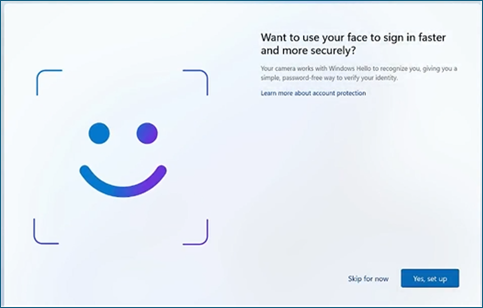
You are then prompted to use Windows Hello with your UT account. You will select OK.
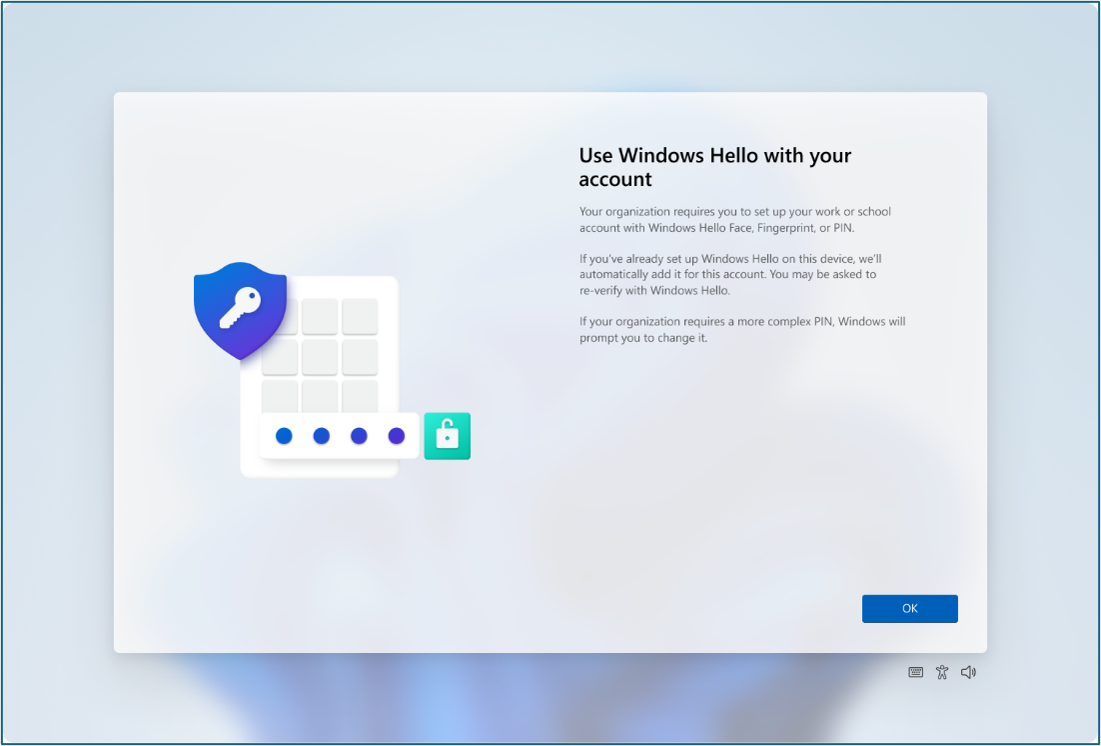
The provisioning flow proceeds to the multi-factor authentication portion of the enrollment. Provisioning informs you that it's actively attempting to contact you through the configured form of MFA. The provisioning process doesn't proceed until authentication succeeds, fails or times out. A failed or timeout MFA results in an error and asks you to retry
After a successful MFA, the provisioning flow asks you to create and validate a PIN.
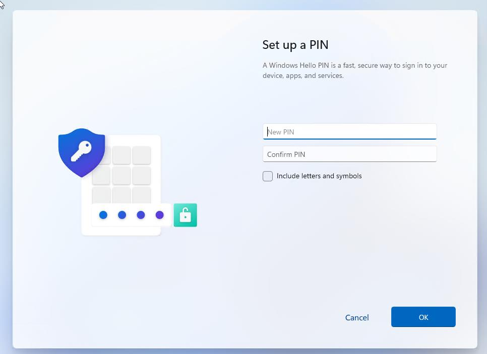
After MFA has been set up, Windows Hello has been successfully set up.
After you have successfully enrolled in Windows Hello, you will need to make sure that your device connects to the UToledo network at least once after enrollment. If your device is onsite, then you are all set. However, if your device is offsite when enrolling, you will need to connect to VPN via the GlobalProtect client on your workstation.
Updating or Recovering Windows Hello Sign-In Methods
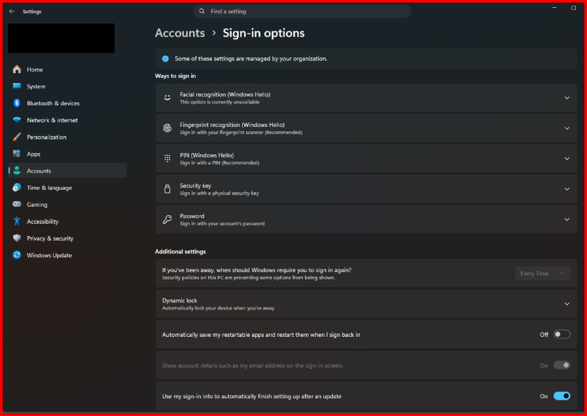
In the event you need to add an authentication method, or update your existing ones, you will be able to update your method in Windows Settings.
- Open Windows Settings
- Go to Accounts
- Go to Sign-in Options
- Update sign in Methods as needed.
If you need to reset your PIN, you will first be prompted to authenticate using Multifactor Authentication.