


Microsoft Forms
Microsoft Forms is an easy-to-use tool for creating online forms and surveys to collect information, feedback and responses.
Creating and Sharing Microsoft Forms
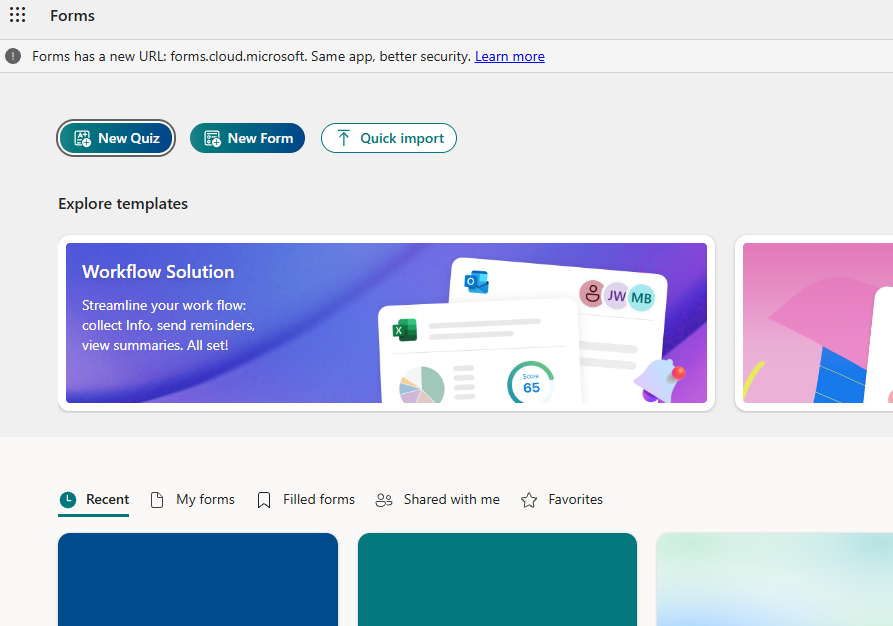
- Open Microsoft Forms in Office 365, select “New Form”.
- Create your form. Enter a title and an optional description explaining the form's purpose.
- Add in questions. Select Add new and choose a question type:
- Choice: Multiple-choice answers
- Text: Written responses
- Rating: Satisfaction or feedback ratings
- Date: Date submissions
- Enter your question and available answer choices. Toggle Required on for questions that must be answered.
- Preview. Once finalized, select “Preview” to view form on a computer or mobile device. Test your questions and make any necessary edits.
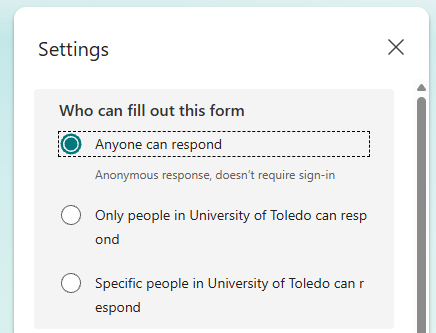
- Configure response settings. Select Settings, under “Who can fill out this form” > select “Anyone can respond” to open form for public submissions outside of UToledo.
- Scroll down settings, under “Response Reciepts” > check “Allow reciept of responses after submission” and “Get email notification of each response”
- Allow receipt of responses after submission: Allows respondents to receive a copy or receipt of their submitted responses for
their records, depending on the form’s settings.
- Get email notification of each response: Sends the form owner an email notification whenever someone submits a response.
- Allow receipt of responses after submission: Allows respondents to receive a copy or receipt of their submitted responses for
their records, depending on the form’s settings.
- Sharing forms. Select Collect responses, choose your preferred sharing method, and copy the link to distribute by email, on a webpage or through another communication channel.