


Department guidelines for Faculty background checks
-
The background check will be initiated by the department’s background originator and the disclosure and authorization completed by the student online. If you or someone in your department needs access to complete background checks, please send your request to AcademicFinanceAndFacultyAdmin@UToledo.Edu
- Originator will log in to their Intellicorp.net account and select the Candidate Direct link from the tool bar.
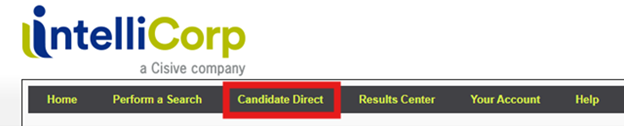
- You will need to determine which invitation option will work best for you to either send out a single invitation or multiple invitations.
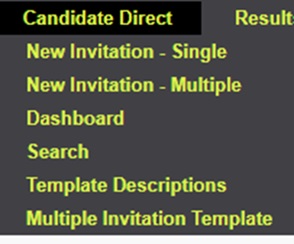
*Please note that for either type the invitation link expires after 30 days
*Faculty APAs will not be processed until their background check has been fully submitted.
Single Invitation: This option will allow you to enter each incoming faculty member’s information into the system individually. This option is best if you are only going to run background checks for a small number of faculty.
Multiple Invitations: The multiple option will allow you to submit a batch of candidates at one time. In order to use this method you will first need to select the Multiple Invitation Template page from the Candidate Direct Dropdown (shown above).
- Be sure to download a new template anytime you are going to submit a batch. If there are any changes to the template, using an old one will result in errors or delays.
3. Using the single invitation
-
- Clicking the single invitation link will automatically open up the form that you will
need to fill out for the student. There are three drop down boxes on the form.
- Permissible Purpose: Please select the Employment option.
- Product Template:
- Please select the Criminal option.
- Clicking the single invitation link will automatically open up the form that you will
need to fill out for the student. There are three drop down boxes on the form.
-
-
-
- Select Criminal + International Criminal if the faculty member has had a permanent residence outside of the United States within the last 7 years
-
-
iii. Name of Opportunity please select the correct campus the incoming faculty member will be working on.
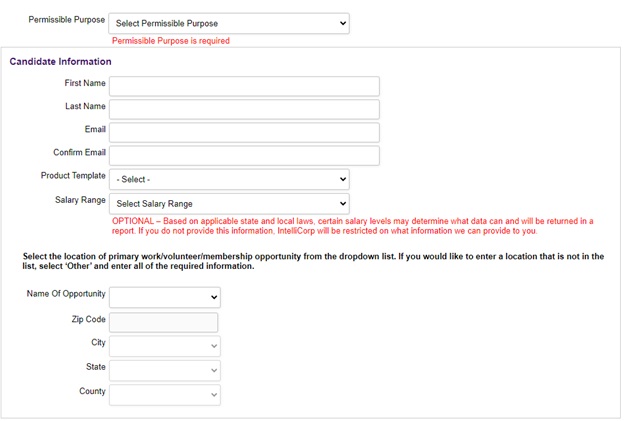
iv. Once you have finished completing this form please click send and the invitation will be sent to the incoming faculty member.
4. Using the Multiple Invitation template
-
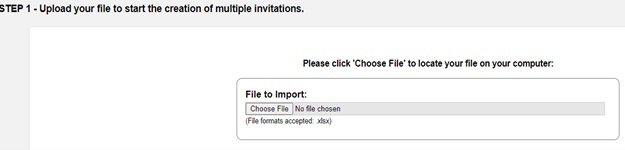
- Before clicking the Multiple invitation button, you will need to ensure that you have downloaded and completed the most recent template. Once this is completed and you start the multiple option you will see the following screen
-
- There are 5 steps to this process after you choose your file and click submit you should be able to simply select next on the final four steps.
Please note: One of the first steps that the faculty member completes in the background check process is signing the Disclosure and Acknowledgement and Authorization for Background Check for Employment Purposes.
The incoming faculty member adds their digital signature to the disclosure and then the authorization on the following screens:
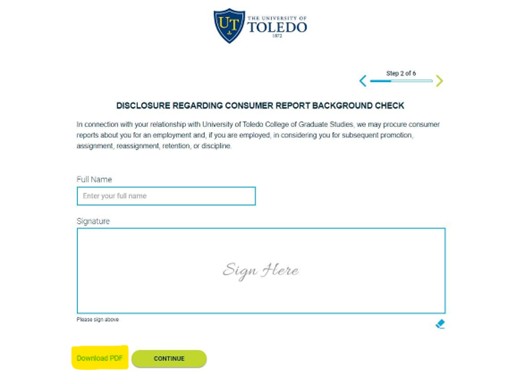
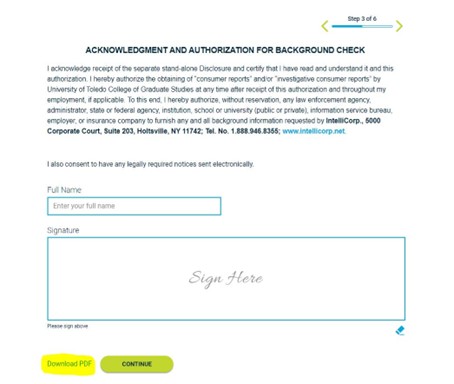
Each step has the option to download a pdf of the signed documents next to the continue button.
Once they have signed, the candidate needs to download and save the pdf of each form, as the final step is to upload both of their signed authorization and disclosure forms.
If the incoming faculty member did not initially download their authorization or disclosure, they will need to go back to those steps, re-sign, download the forms, and then recomplete the remaining steps. Students can return to previous steps by hitting the green arrow next to the step number at the top of the screen.
5. Tracking Progress
-
- Once your invitations have been submitted you will be able to track their progress through your Intellicorp dashboard.
- The incoming faculty member has 30 days to complete the background check before the link expires.
- Candidates will receive 1 reminder that their link is about to expire 7 days ahead of the expiration date.
- The originator will also receive weekly notifications regarding incomplete invitations.
6. Re-activation
-
- If a link expires, the originator is able to go in and send a new active link to the candidate