

Thumb Drive Encryption
Thumb Drive Encryption with Bitlocker
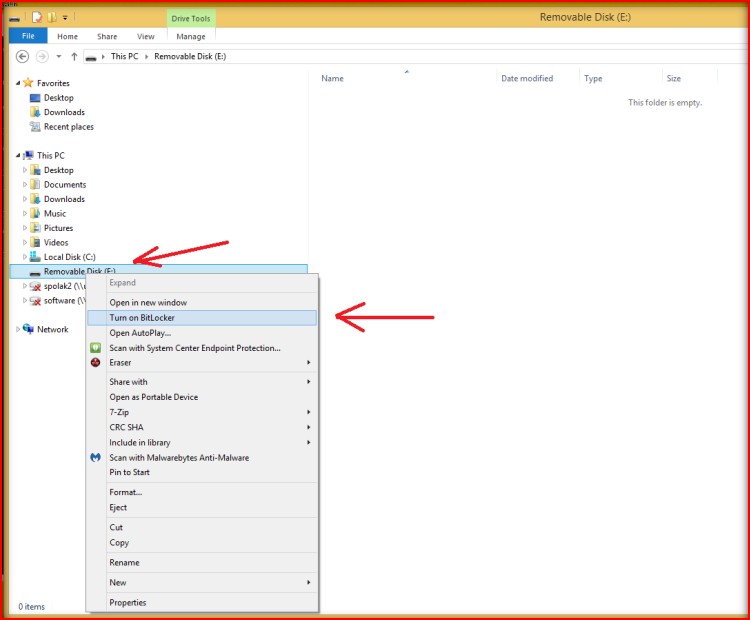
1. Plug the thumbdrive that you wish to encrypt into your machine. Open File explorer, right-click on the drive and select Turn on Bitlocker.
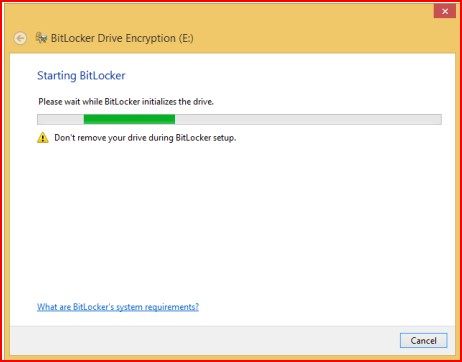
2. You will then see a screen telling you that Bitlocker is starting.
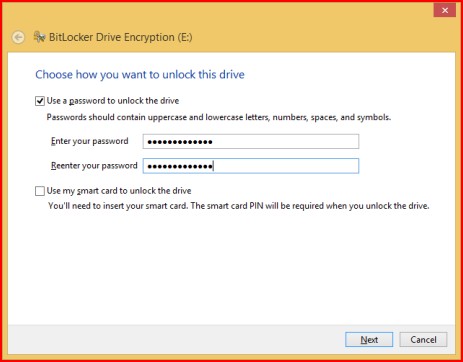
3. Next, you will be asked to provide a password that will be used to unlock the drive whenever it is plugged in in the future. Type in a password (twice) and hit “Next.” BE SURE TO REMEMBER THIS PASSWORD, as you will need it to access this device whenever your plug it in. It is best to write it down and keep it in a secured place. DO NOT STORE THIS PASSWORD WITH THE THUMBDRIVE AS THIS WOULD DEFEAT THE PURPOSE OF ENCRYPTING IT.
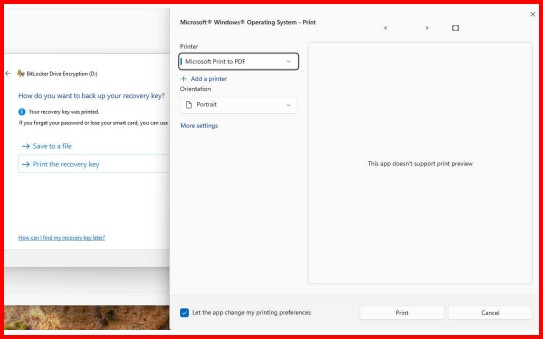
4. You will now be asked to create a backup key. Select “Print the recovery key” a Printer selection screen will appear. You can choose to Print to PDF or to Follow-Me. Select your printer and then click "Print."
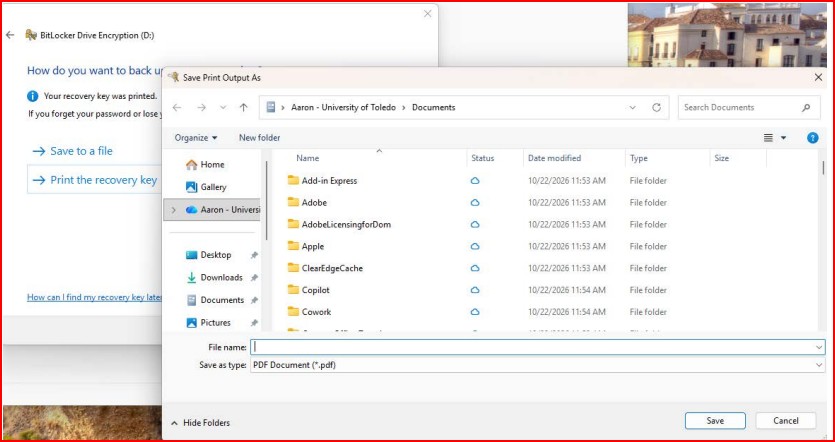
5. If you chose Print to PDF in Step 4, then select a secure location to store the file. Recommended is OneDrive Documents folder (as seen below). Give the file a REMEMBERABLE name and click "Save."
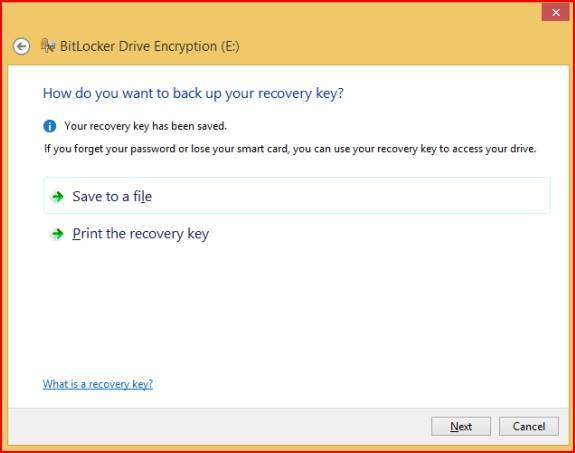
6. You will now see a window that says your recovery key has been saved. Click “Next”to continue.
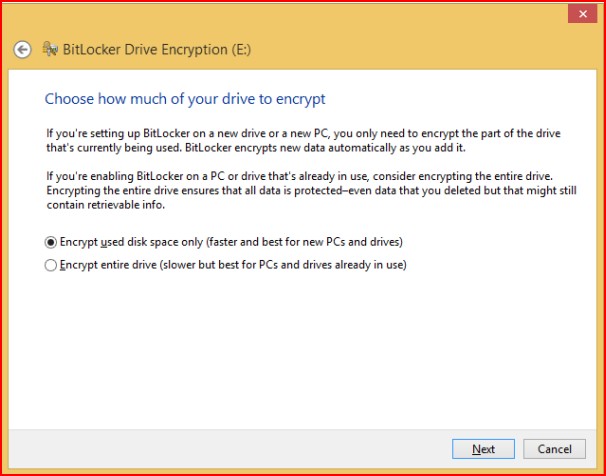
7. You will now be prompted to choose how you wish to encrypt this device. The first option is usually the one you would choose (for new drives).
8. You will now see a windows asking you if you are ready to start encrypting. Select the“Start Encrypting” button.
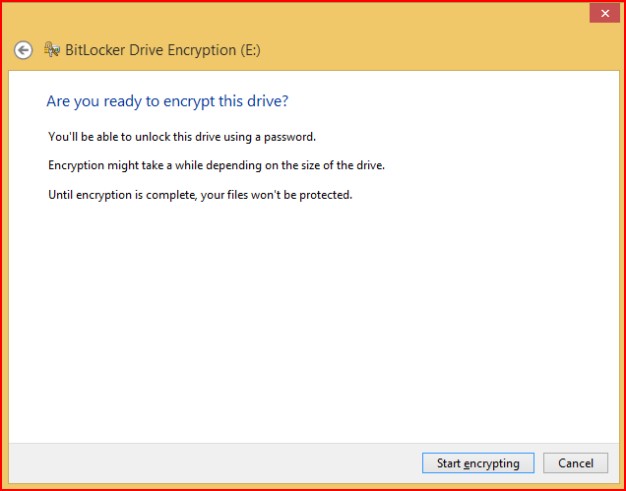
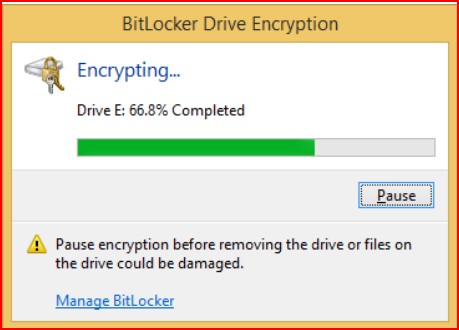
9. There will now be a window displayed showing you the status of the encryption process. This may take several minutes depending on the contents and size of the drive.
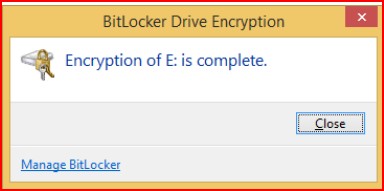
10. Once encryption is complete, you will see the windows displayed in. This drive is now ready to start using.
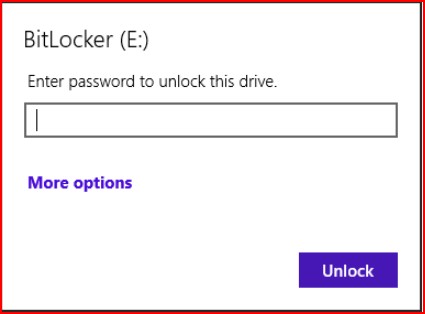
11. Whenever you plug in the thumbdrive, you will be prompted to provide the password you created in Step 3.