


LinkedIn Learning
What is LinkedIn Learning?
LinkedIn Learning is an online training platform offering thousands of high‑quality, expert‑led courses designed to support your professional and personal development. All faculty and staff have free, unlimited access to this on‑demand resource at no cost to employees or departments. Available 24/7, LinkedIn Learning features a continually growing library of courses covering software, technology, leadership, and business topics, enabling employees to build new skills and advance their careers anytime, anywhere.
What LinkedIn Learning Provides
- Personalized Learning - Explore the most in-demand skills based on the development needs for your career.
- Convenience & Flexibility - Access courses anytime from any desktop or mobile device.
- Expert Instructors - Learn from industry leaders, all in one place.
- AI Powered Tools - Use built‑in AI features to strengthen career skills and prepare for real‑world conversations.
Please reach out to HRTraining@UToledo.edu with any questions.
How to Setup Your LinkedIn Learning Account
New User
- Click the Activation Link to activate your account.
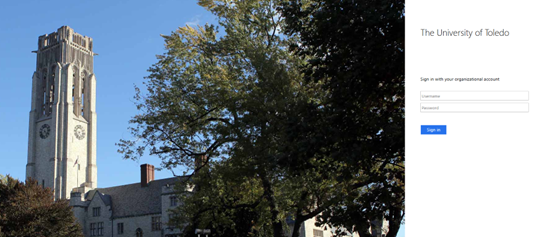
- Sign in with your UT account using your email (username@rockets.utoledo.edu) and password. The site will then prompt you to login with your UToledo single sign
on.
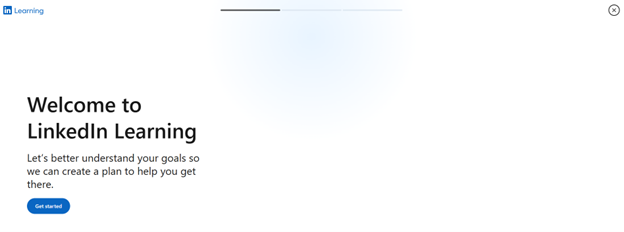
- You will be asked to create your Learning Plan. Click Get Started.
- You will have the option to connect a LinkedIn profile to your LinkedIn Learning account.
If you don't have a LinkedIn profile, you can easily create one. LinkedIn will reference
your experience to personalize your plan. This is optional.
Current User
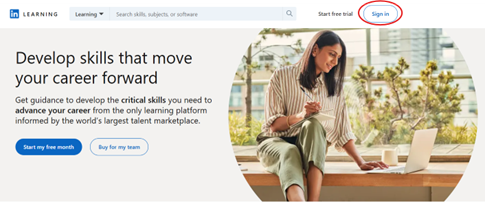
- Visit LinkedIn Learning and click Sign in at the top right corner.
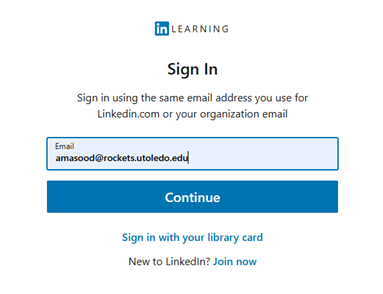
- Enter your University of Toledo email (username@rockets.utoledo.edu) and click Continue. This may prompt you to login to your UToledo Single Sign-On.
How to Link Your Personal LinkedIn Profile to LinkedIn Learning
During the activation process, you will have the option to connect a LinkedIn profile to your LinkedIn Learning account. This is optional. You can disconnect or reconnect your LinkedIn profile at any time.
Benefits:
- Automatically add certificates and skills to your profile
- Personalized course recommendations
- Social learning features (Q&A, shared courses)
To connect your existing LinkedIn Learning account with your personal LinkedIn profile, follow these steps:
- Go to LinkedIn Learning and sign in using your LinkedIn Learning credentials.
- Click your profile photo in the upper right corner. Select Settings from the dropdown menu.
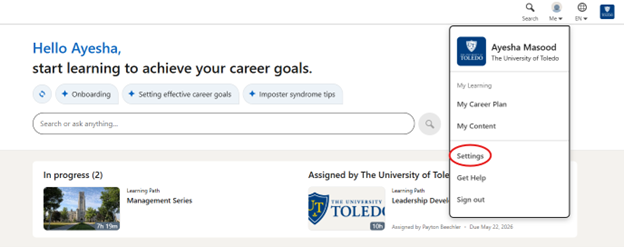
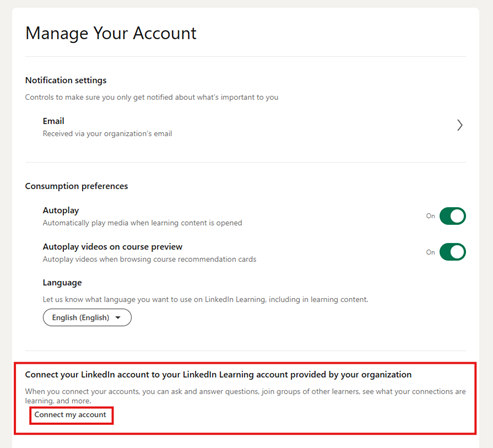
- Find the section labeled Connect your LinkedIn account to your LinkedIn Learning account. Click Connect my account.
- Enter the email and password of the personal LinkedIn profile you want to connect. Click Accept and continue to confirm.
How to Navigate LinkedIn Learning
On the left side you will find a tool bar with different sections. 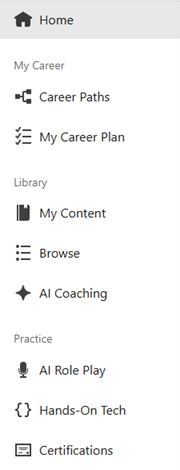
Here is how each section works:
My Career
Focuses on career growth, direction, and planning
Career Paths
- Curated, step-by-step learning journeys for specific roles
- Combines multiple courses in a recommended order
- Helps learners understand what skill are needed for a target role and how to build them
Best used when: You want guidance on what to learn next for a specific job or career transition.
My Career Plan
- A personalized space to track career goals, save learning paths tied to those goals, and monitor progress over time
- Aligns learning with long-term professional objectives
Best used when: You are intentionally planning growth, promotions, or a career change.
Library
The main hub for finding and managing content
My Content
- Shows courses your have started or saved, completed learning, learning history, and bookmarks
- Makes it easy to resume where you left off
Best used when: You want to continue, review, or track previously viewed learning.
Browse
- Explore the full LinkedIn Learning catalog by topic (Business, Tech, Creative, Leadership, etc.), skill, software tool, and learning level (Beginner → Advanced)
- Includes courses, videos, learning paths, and collections
Best used when: You want fast guidance, recommendations, or clarification without searching manually.
AI Coaching
- Uses LinkedIn Learning AI to answer questions in plain language, recommend courses based on your goals, and suggest next steps while you learn
- Functions like a personal learning assistant
Best used when: You want fast guidance, recommendations, or clarification without searching manually.
Practice
Hands-on learning to apply skills, not just watch videos
AI Role Play
- Simulated, real‑world scenarios (e.g., performance conversations, leadership discussions, sales calls)
- Allows learners to practice responses and receive AI‑driven feedback
- Low‑risk environment to build confidence
Best used when: You want to practice communication, leadership, or people-management skills.
Hands-On Tech
- Interactive technical labs
- Practice using real tools and environments (e.g., coding, cloud platforms)
- Learn by doing, not just watching
Best used when: You need practical experience with technical tools or systems.
Certifications
- Prepares learners for industry‑recognized certification exams
- Includes exam‑aligned learning paths and skill coverage mapped to certification requirements
Best used when: You are preparing for a certification exam or formal credential.
Learn more about how to utilize LinkedIn Learning by exloring the How to Use LinkedIn Learning Pathway.
LinkedIn Content & Learning Terminology
Course - A collection of video lessons focused on a specific topic (e.g., Coaching Skills for Leaders).
Collections - Custom playlists of courses created by admins or instructors for targeted learning needs. Located under My Content section.
Video/ Lesson - An individual segment within a course.
Learning Path - A curated sequence of courses designed by different expert instructors to build skills in a specific area.
Learning Plan - AI-created sequence of modules, made up of courses. Personalized based on skill evaluations and learner’s set career goal. Located in My Career Plan on main navigation menu.
Exercise Files - Downloadable materials used to practice skills taught in a course.
Continuing Education Units (CEUs) / Professional Development Units (PDUs) - Credits earned from select courses that count toward professional certifications
Employee Development
Develop the skills that support effectiveness, engagement, and career growth at The University of Toledo. Explore these suggested courses on LinkedIn Learning.
- Professionalism and Communication
Learn how to build emotionally intelligent, respectful, and effective workplace communication including managing conflict, disagreement, and civility with professionalism. - Time Management and Prioritization
Learn how to efficiently manage your time so you can prioritize what is important. - Personal Growth & Workplace Well‑Being
Enhance productivity, resilience, and work‑life balance. - Advance Your Career
Understand the new rules of work, foster a career vision, create a career map, and get started on your next play. - Microsoft Office
Learn all the tips and tricks of using Microsoft Office. - Building Critical Thinking Skills in the Age of AI
Integrate generative AI into critical thinking, enhance judgment, make sound decisions, solve problems innovatively, and improve their thinking. - Build Your Skills In Customer Service
Discover how to provide great customer service and make your customers feel heard.
Leadership Development
LinkedIn Learning courses are designed to help managers grow their skills and lead successfully.
- Develop Critical Thinking, Decision-Making, and Problem-Solving Skills
Improve your logic, sharpen your judgment, and make better decisions through critical thinking by exploring alternative solutions to problems. - Conflict Management
Discover how to improve your relationships with your coworkers, clients, employees, and supervisors and find your way through conflict back to cooperation. - Develop Your Skills as a New Manager
Learn essential skills, tools, and confidence to lead teams effectively - Leading Your Team to Excellence
Learn how to motivate and collaborate with your team to create a positive work environment. - Learn the Skills to Motivate and Develop Employees
Motivate and coach others, create the environment for learning, build employee learning agility, and provide timely guidance and feedback to achieve team and organizational objectives. - AI for Organizational Leaders by Microsoft and LinkedIn
Learn how to make informed decisions about AI adoption and application as an organizational leader. - Performance Reviews
Effectively complete performance evaluations for your employees.
Faculty Development
Support excellence in teaching, research, and academic leadership.
- Increase Learner Engagement
Effective teaching strategies and course design - Teaching Techniques: Blended Learning
Online and hybrid teaching fundamentals - Strategic Foundations of GenAI for Higher Education Leaders
Learn the strategic imperative for AI, institutional readiness, and how to foster an AI-driven culture while ensuring ethical governance, transparency, and accountability.
LinkedIn Learning can help you earn continuing education credits to keep your certifications current. Their online courses have been recognized and approved by organizations as educational activities toward your ongoing
professional development.
Access Continuing Education Units (CEU)
Explore Continuing Education Unit (CEU) Topics
HomeTown Health University
HomeTown Health, LLC, doing business as HomeTown Health University (www.hthu.net),
has complied with the ANSI/IACET Standard, which is recognized internationally as
a standard of excellence in instructional practices.
Access HomeTown Health University Unit
Computing Technology Industry Association (CompTIA)®
LinkedIn Learning is an authorized CompTIA® Delivery Partner, offering the latest
CompTIA® training and certification courses to help you earn your continuing education
units. All of the courses listed here meet CompTIA® eligibility requirements for CEU
credits, which state that at least 50% of a course’s content is aligned with the appropriate
exam’s learning objectives.
Access CompTIA® Unit
HR Certification Institute (HRCI)®
LinkedIn Learning is a recognized Approved Provider. HR Certification Institute® preapproved
this program for general recertification credits toward aPHR™, aPHRi™, PHR®, PHRca®,
SPHR®, GPHR®, PHRi™ and SPHRi™.
Access HRCI® Unit
Society for Human Resource Management (SHRM)®
LinkedIn Learning is recognized by SHRM® to offer SHRM-CP or SHRM-SCP professional
development credits (PDCs).
Access SHRM® Unit
International Institute of Business Analysis (IIBA)®
LinkedIn Learning is an approved International Institute of Business Analysis (IIBA®)
Endorsed Education Provider for CCBA®, CBAP®. LinkedIn Learning courses can assist
learners with their continuing development units (CDUs).
Access IIBA® Unit
NASBA Continuing Professional Education (CPE)
LinkedIn Learning is registered with the National Association of State Boards of Accountancy
(NASBA) as a sponsor of continuing professional education on the National Registry
of CPE Sponsors. State boards have the final authority on requirements and acceptance
of CPE credits.
Access NASBA Continuing Professional Education Unit
Project Management Institute (PMI)®
LinkedIn Learning has been reviewed and approved by the PMI® Authorized Training Partner
Program. Maintain your PMI credentials by earning PDUs with LinkedIn Learning’s qualified
courses. We offer courses that qualify for technical project management, leadership,
and strategic and business management.
Access PMI® Unit
Is my LinkedIn profile the same as LinkedIn Learning?
No, these are separate platforms that can be optionally connected.
LinkedIn profile
- This is your professional profile and networking space.
- It shows your job history, education, skills, accomplishments, posts, and connections.
- It’s what recruiters, colleagues, and peers see when they look you up.
- You use it to network, follow organizations, post updates, and apply for jobs.
LinkedIn Learning
- This is a separate learning platform owned by LinkedIn.
- It offers online courses in areas like leadership, HR, business, technology, and creative skills.
- You access it through a subscription paid for the University of Toledo.
- When you complete courses, you can choose to display certificates or skills on your LinkedIn profile
Do I need a LinkedIn profile to use LinkedIn Learning?
A LinkedIn profile is recommended but not required. You may choose to:
- Link your LinkedIn profile to track learning progress and certificates, or
- Use LinkedIn Learning without sharing activity publicly
Can I access LinkedIn Learning from my mobile device?
Yes, you can access LinkedIn for AppleiOS and Android devices. Search for “LinkedIn Learning” in the App Store.
How do I connect my LinkedIn Learning profile to my LinkedIn account?
During the activation process, you will have the option to connect a LinkedIn profile to your LinkedIn Learning account. This is optional. You can disconnect or reconnect your LinkedIn profile at any time.
Benefits
- Automatically add certificates and skills to your profile
- Personalized course recommendations
- Social learning features (Q&A, shared courses)
To connect your existing LinkedIn Learning accoutn with your personal LinkedIn profile, follow these steps:
- Go to https://www.linkedin.com/learning and sign in using your LinkedIn Learning credentials.
- Click your profile photo in the upper‑right corner. Select Settings from the dropdown menu.
- Find the section labeled Connect your LinkedIn account to your LinkedIn Learning account. Click Connect my account.
Is my learning activity visible to others?
Your learning activity is private by default. You control whether completed courses or certificates appear on your LinkedIn profile.
Are accessibility features available?
Yes. LinkedIn Learning includes accessibility features such as:
- Closed captions
- Adjustable playback speed
- Screen reader compatibility
I was assigned or recommended to take a training; how do I access that training?
Method 1: Email Address
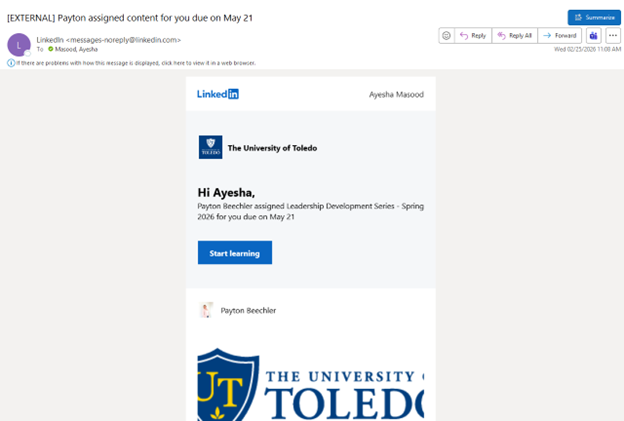
- Look for an email on your UT email from LinkedIn Learning regarding your training.
- Click the Start learning button.
- Sign in with your UT email and you will be taken to the assigned/recommended training.
Method 2: LinkedIn Learning Access
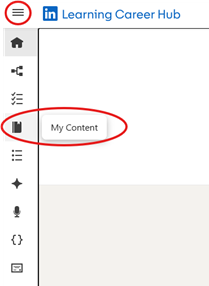
- Once logged in, you will see the menu at the top left corner. From there, you will
see My Content in the Library section.
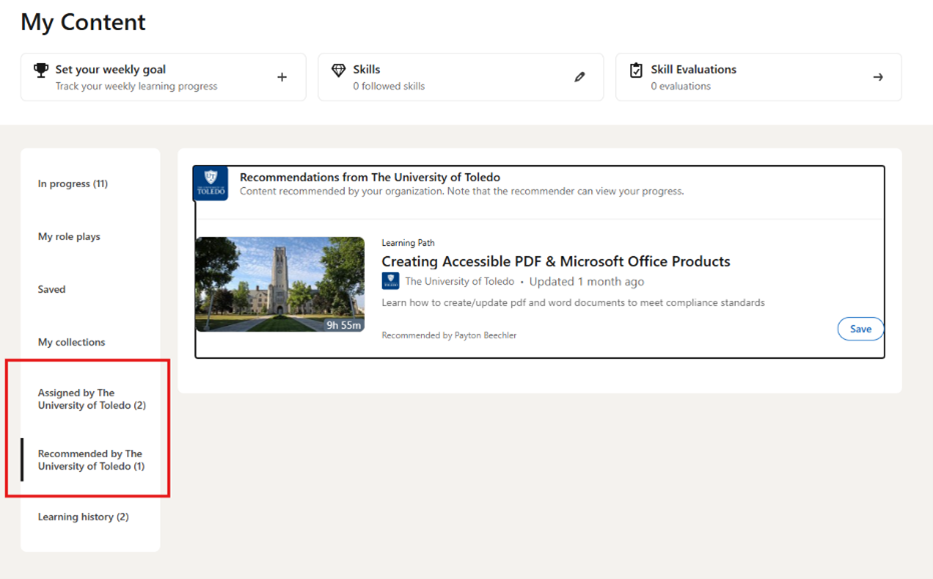
- On this page you will see a sidebar with tabs that will show content in your library
including: Assigned by the University of Toledo and Recommended by the University of Toledo training
Who should I contact if I have trouble accessing LinkedIn Learning
For access or login issues, contact the HR Training and Organizational Development Team at HRTraining@UToledo.edu