


How to Edit Your Syllabus in Simple Syllabus
Preview, Required Sections, and Visibility
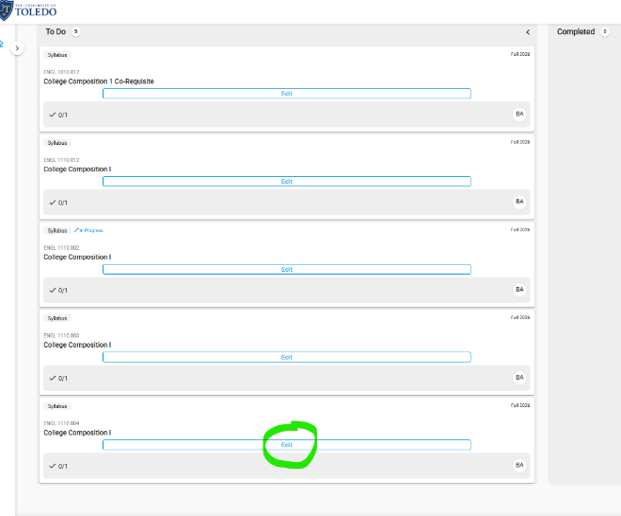 The Preview button at the bottom left of the screen allows you to see how your syllabus will
appear to students.
The Preview button at the bottom left of the screen allows you to see how your syllabus will
appear to students.
- You cannot submit your syllabus until all required sections are completed.
- Each fillable section includes a description indicating whether the section is required or optional.
- The Course Overview section is not required.
- You may use the Visible option to choose whether this section is shown to students.
- The Course Overview section is Private and can only be viewed by students enrolled in your course.
- The blue circle in the bottom right corner indicates whether your syllabus has accessibility issues.
- When issues are detected, the number inside the blue circle shows how many accessibility issues need to be addressed.
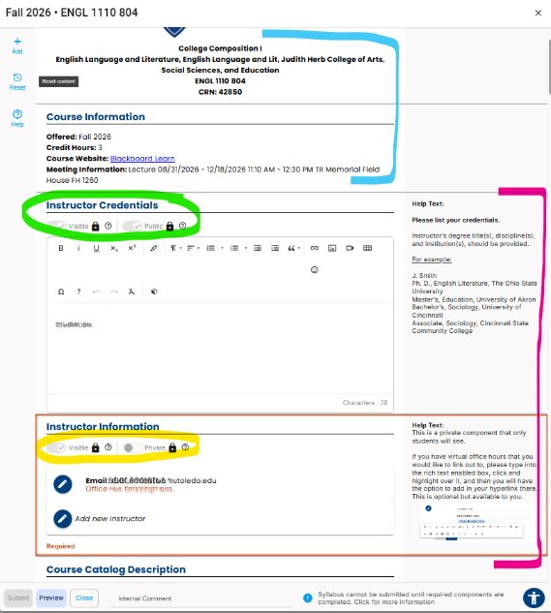 As you scroll through your syllabus:
- Some sections are pre-filled and cannot be edited
- Other sections must be completed by you
- Help Text appears on the right side of each editable section
- Private sections are visible only to enrolled students
- Public sections are visible to the general public
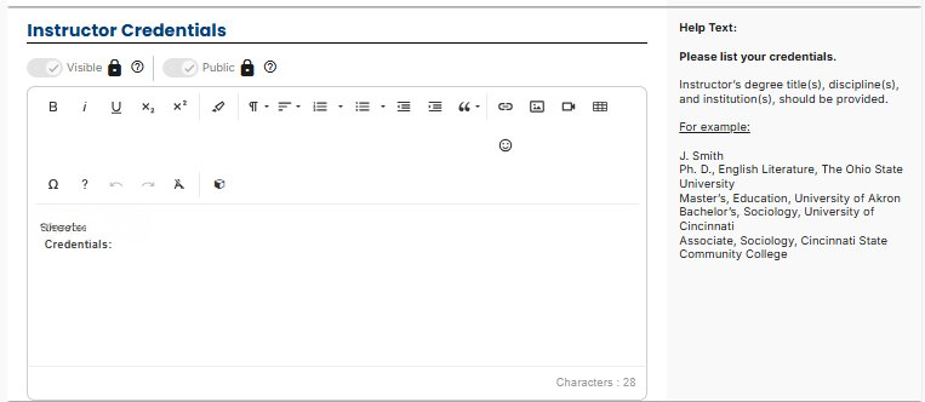
Instructor Credentials (Required – Public)
Instructor Credentials is a required section:
- This section must be completed before submitting your syllabus
- Information entered here is visible to the general public
- The Help Text provides an example of how to format credentials
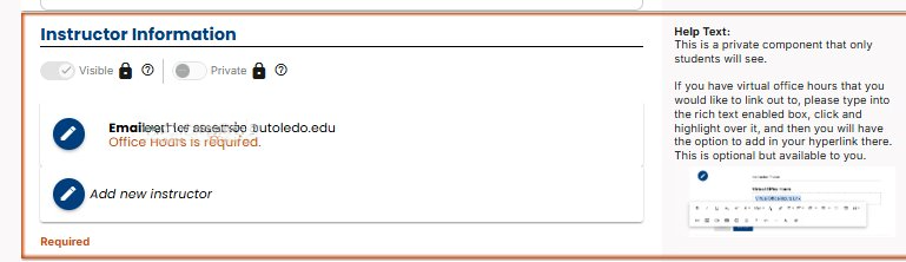
Instructor Information (Required – Private)
Instructor Information is a required section:
- This section must be completed before submitting your syllabus
- Information entered here is visible only to students enrolled in your course
- Office Hours are required in this section
- The Help Text explains what information to enter
Preview, Required Sections, and Visibility
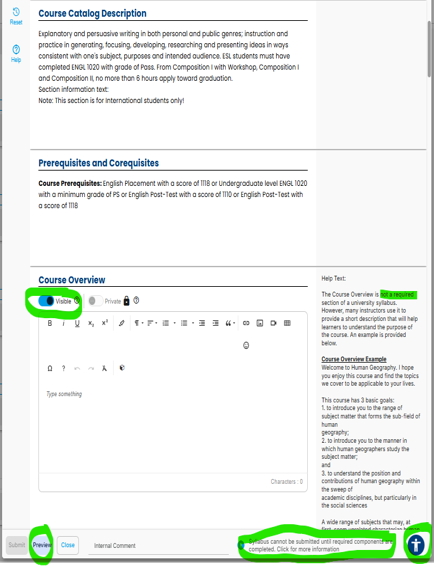 The Preview button at the bottom left of the screen allows you to see how your syllabus will
appear to students.
The Preview button at the bottom left of the screen allows you to see how your syllabus will
appear to students.- You cannot submit your syllabus until all required sections are completed.
- Each fillable section includes a description indicating whether the section is required or optional.
- The Course Overview section is not required.
- You may use the Visible option to choose whether this section is shown to students.
- The Course Overview section is Private and can only be viewed by students enrolled in your course.
- The blue circle in the bottom right corner indicates whether your syllabus has accessibility issues.
- When issues are detected, the number inside the blue circle shows how many accessibility issues need to be addressed.
Need help? Contact Fatmeh Alalawneh at 419.530.4017 or email SimpleSyllabus@UToledo.Edu