

How to Open Simple Syllabus Dashboard
Open Simple Syllabus in Blackboard
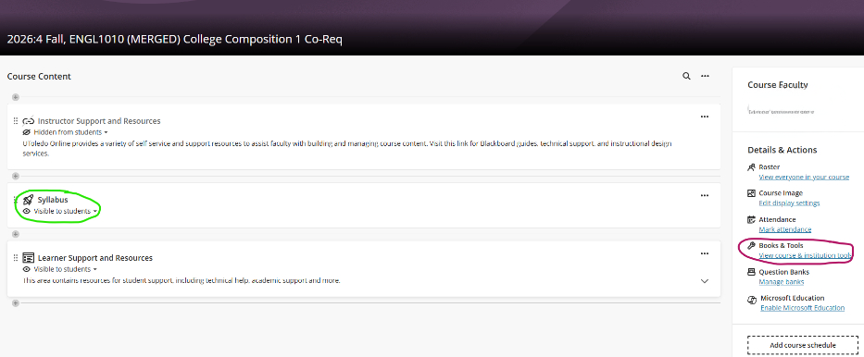
There are two ways to access Simple Syllabus from Blackboard:
- Click Syllabus in the Course Content area of your course
- OR click Books & Tools in the right side column and select Simple Syllabus
Open the Dashboard
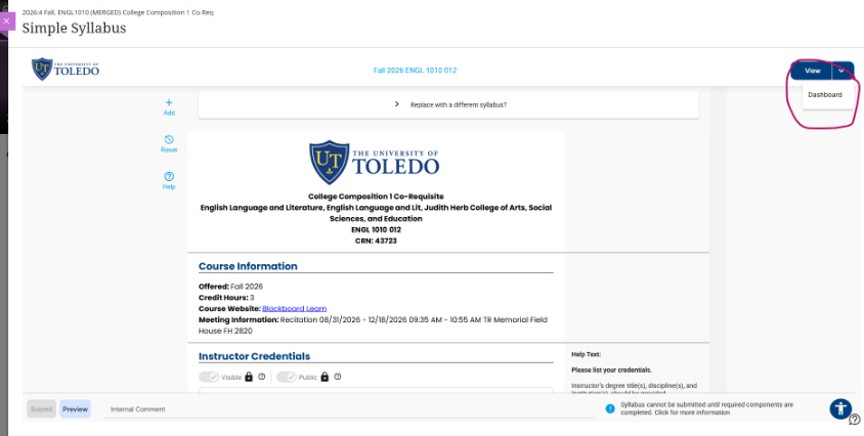
When you are inside your syllabus:
- Click View in the upper-right corner of the screen
- Select Dashboard
- The Simple Syllabus dashboard is a centralized, digital hub integrated into Blackboard that allows instructors to create, edit, and publish interactive course syllabi. It streamlines the process by auto-populating institution-required policies, course details, and instructor information, ensuring compliance while enabling customization.
Inside the Dashboard
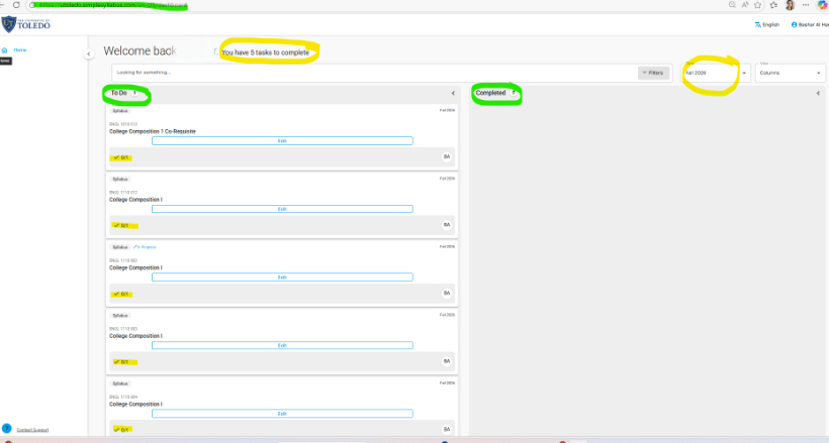
Once you are inside your Dashboard:
- You will see a welcome message at the top with your name.
- Next to it, you will see the number of tasks you need to complete. Tasks are fields that you will need to complete on the syllabus form including editing required sections, adding custom course details.
- The screen is divided into two sections: To Do (left side of screen) and Completed (right side of screen).
- As each syllabus is completed, it moves to Completed and your remaining tasks decrease.
Need help? Contact Fatmeh Alalawneh at 419.530.4017 or email SimpleSyllabus@UToledo.Edu